http://lennythecomputerguy.blogspot.com/2010/09/system-restore-tutorial-how-to-set.html
http://lennythecomputerguy.blogspot.com/2010/08/ccleaner-how-i-use-it-to-manage-my.html
I have linked the above two posts, one about how to use and set up System Restore and System Restore Points (SRP's) and the other about how I use CCleaner and how CCleaner can be used to clean out older SRP's on computers that are facing the need to remove stuff that is filling up a hard drive. SRP's use up a lot of hard drive space so getting rid of unneeded SRP's is a quick and easy first step in freeing up space on a hard drive.
Here is a series of posts that I made in the CHAD Yahoo Group trying to help someone else free up space on their nearly full hard drive.
-----Original Message-----
From: "Lenny The Computer Guy" Vasbinder [mailto:lennythecomputerguy@gmail.com]
Sent: Wednesday, January 05, 2011 10:35 AM
Subject: RE: [CHAD] Running out of space
Do you know what is taking up the bulk of that space? I would start with that folder and look to see what you are saving and if it's not something you need immediate access to, move those files to an external hard drive... or like some say, maybe it's time to get a NEW bigger hard drive and make the new hard drive your primary operating drive and use your current drive as extra storage.
I don't download/save a lot of music or movies (two of bigger users of hard drive space) but if you do, that is where I would look first as places to move/delete files to get some quick space. Each movie will usually run over 1GB.
Tree Size Free might be a tool that will help you figure things out.
http://download.cnet.com/TreeSize-Free/3000-2248_4-10139400.html
There is another program that I wanted to direct you to that has been around forever but I'm drawing a blank on the name of it right at the moment so I went to Download.com to see if I could find the program but came up with the above instead. Maybe someone else will recommend the one I was thinking of first.
If you don't already use CCleaner, that will usually get rid of a lot of crap that isn't needed but it won't give you the kind of space you are probably looking for... but it's a good tool to run daily as a general rule. I have a blog post on how I use CCleaner since I don't like the default settings, which clean out more than I like.
Lenny Vasbinder - 504-667-5111
Skype, YM & Blogspot - LennyTheComputerGuy
-----Original Message-----
Sent: Wednesday, January 05, 2011 10:14 AM
To: CHaD
Subject: [CHAD] Running out of space
I discovered yesterday that my 'space' is about to run out. It has been fluctuating but currently I have 14G free of 288G
I am running Vista on this desktop.
How can I find out what duplicates, if any, there might be or what else I don't need.
Any help is appreciated.
-----Original Message-----
From: "Lenny The Computer Guy" Vasbinder [mailto:lennythecomputerguy@gmail.com]
Sent: Wednesday, January 05, 2011 5:05 PM
Subject: RE: [CHAD] Running out of space
I'm not sure about Carbonite but I use Mozy Online Backup and they keep the past 30 backups (or more) on their servers and using the on-computer program, I'm able to look at my previous backups and *where* the files/folders are located kind of like using Windows Explorer so you may be able to go online or through your Carbonite Client and see where these folders actually belong and move them back into their proper place. Of course, if you restored "all my stuff", then why do you have these extra folders left on your desktop? With Mozy, it restores the file back to it's original place but maybe there is a way to direct it to the desktop. I've only had to use Mozy a couple of times over the past several years, the last time a year or so a go when I mucked up my Favorites/Bookmarks when I messed up using Xmarks syncing over 3,000 links between IE and FF on two different computers.
Fortunately I was able to just delete my mucked up sync job and restore my backup from a few hours earlier. I then read the fine print on XMarks and did the sync job properly and other than occasional minor glitches, all of my browsers on my desktop and laptop have exact copies of Favorites/Bookmarks no matter which browser/computer I'm using when I save a new Favorite/Bookmark.
I've never had to do a major restore from Mozy but for the few minor ones I've done, it's worked as advertised. Not a bad thing for free. ;-) For major backups for a complete reinstall, imaging is the best/easiest way to go but for the occasional PICNIC problem when a user deletes a file or mucks up a file and needs a copy from the day or days before, Mozy works GREAT. For a BIG backup, Mozy offers sending your files via CD or DVD for quicker restore since downloading lots of gigs of files would be time consuming.
Lenny Vasbinder - 504-667-5111
Skype, YM & Blogspot - LennyTheComputerGuy
-----Original Message-----
From:
Sent: Wednesday, January 05, 2011 2:21 PM
Subject: Re: [CHAD] Running out of space
Lenny, thanks for your tips!
Carbonite, I was able to 'restore' all my stuff. I didn't get the laptop fixed right away so in the meantime I 'restored' to this desktop. Now the desktop has stuff on it that was actually for the laptop. (Ex: Webcam). And there are files that I'm not sure where they belong. (Ex: a folder is Drivers)
-----Original Message-----
From: "Lenny The Computer Guy" Vasbinder [mailto:lennythecomputerguy@gmail.com]
Sent: Thursday, January 06, 2011 11:18 AM
Subject: RE: [CHAD] Disk cleanup
As Rick said, it's a good idea to check this from time to time... just to see what Windows is saying *may* be junk you *may* want to get rid of. By default, only some of the things found will be checked and the other stuff, you should carefully check before deleting. I usually delete all the things checked by default.
Interestingly, I haven't run this in a while on my Vista laptop and there was a Hibernation File Cleaner (unchecked by default) of nearly 3GB. I'm sure I can delete this but am checking it out to be sure. I believe this will be rebuilt if needed in the future. I rarely put my computer into Hibernation but it will on rare occasion do so when the battery is about to go dead if I wasn't paying attention to my battery level. This thread says we should keep this file, especially on laptops, so I guess I'll keep it. http://www.vistaheads.com/forums/microsoft-public-windows-vista-performance-maintenance/145031-disk-cleanup-how-delete-hibernation-file-cleaner-893mb.html OR http://tinyurl.com/2ec2lmm
This article explains things in more detail. http://oreilly.com/pub/a/windows/2007/03/06/cleaning-up-your-disk-drives-in-windows-vista.html OR http://tinyurl.com/24kzoz9
I think this temp file cleanup, as well as defragging, registry cleaning, etc., is all covered in a FULL SCAN using the online Windows Live OneCare scan.
For Vista/W7 - http://onecare.live.com/site/en-us/center/whatsnew.htm
For XP - http://onecare.live.com/site/en-us/default.htm
I run these online scans once a month on my computers and tell my family, friends and customers to also do this... to save you from having to do all these things manually and the FULL SCAN also does a malware scan of the computer as a backup or checkup to your regular security programs. They can take a couple of hours so I run them when I'm not going to be needing the computer for a few hours or usually when sleeping, then when I wake up, I can see what the scan found and click the drop down arrows to check/un-check what I want the online scan to clean/fix.
On another note, that I think we covered in your (or someone else) prior thread, a BIG waste of space is often found in System Restore points. The default setting is to use 12% of a hard drives space for restore points but with modern BIG hard drives, this can amount to a LOT of space, for example, on a 100GB hard drive (not that big), this amounts to 12GB, on a 500GB hard drive, it's 60GB. If you use CCleaner, you can use their Restore Point cleanup tool to manually remove some of the restore points (by default, it will not allow you to remove the most recent one). It's best to actually go into your System settings (Control Panel>System) and change the default settings to a smaller percentage, depending on your hard drive size. I keep mine at only 3% which still allows for up to 30 restore points, which is overkill in most cases. I rarely use System Restore but when I did have to use it, I usually only went back a day or two. Even when you have your System Restore settings to a much lower percentage of your hard drive, you can still use CCleaner's tool to remove some of the restore points. I will usually leave the oldest and then remove every other SRP. I only do this about once every two weeks and once the oldest restore point is more than 30 days old, I delete all over 30 days and then every other one. This allows me to keep SRP's up to 30 days old and then only every other day's SRP instead of every day, which keeps the total space used around 1/2 of the 3%. AFAIK, 3% is the lowest percentage you can use but on a BIG hard drive, 3% is a LOT of space.
Lenny Vasbinder - 504-667-5111
Skype, YM & Blogspot - LennyTheComputerGuy
-----Original Message-----
Sent: Thursday, January 06, 2011 7:43 AM
To: CHaD
Subject: [CHAD] Disk cleanup
OS is Vista. Go to Computer > right clik & C Drive > click properties > on the General tab, below the pie is a button that says Disk Clean up. I've never used that button before. Is that a good thing to do?
I do go to the Tools tab & run Error checking & Defrag.
-----Original Message-----
From: "Lenny The Computer Guy" Vasbinder [mailto:lennythecomputerguy@gmail.com]
Sent: Friday, January 07, 2011 7:03 PM
Subject: RE: [CHAD] It doesn't make sense
I suspect that Carbonite was the problem causing your hard drive to fill up since you said that you turned it off and you immediately saw an additional 20GB of free space.
Online backup programs, at least I know with MozyHome Free, will create a temporary folder of files it is backing up during the backup process and then once the backup is complete, it releases that folder. Mozy also has a way, besides backing up online, to also backup to an external hard drive but I guess if someone changed the drive letter to their own internal hard drive, Mozy would create those backups on the host computer instead of an external hard drive. I'm not sure if Carbonite does this since I haven't used Carbonite in many years opting to use Mozy when I was testing both of them several/many years ago. If Carbonite is doing this internal backup on your hard drive and it's scheduled to do daily backups... or if it's the online backup temp folder that is not releasing after uploaded that is happening, either of these would cause the loss of hard drive space that you have.
I'm also wondering what else you have saved in your 288GB hard drive. Most folks that have that much stuff saved at least know what is taking up the bulk of that space... like downloaded movies, videos, audio, etc., as saving regular files like documents, etc., would take hundreds of thousands of files to use up that much space... and even saving BIG image files would take thousands to tens of thousands of files. If you are a professional or even a hobbyist photographer and save every photo you take, that could be addressed by reducing the size of the original image file, for example, if you are saving each picture in a super high resolution, where each file is over 5MB in size, you could reduce them to 1MB (still a big picture size) and save 80% of the hard drive space they were taking, presuming you have thousands of 5MB images. Music files can also be saved in different formats to reduce the size of each file, presuming you have thousands of songs saved in one of the bigger media formats.
Were you ever able to use CCleaner to examine your System Restore Points and Remove some of them?
Lenny Vasbinder - 504-667-5111
Skype, YM & Blogspot - LennyTheComputerGuy

Showing posts with label CCleaner. Show all posts
Showing posts with label CCleaner. Show all posts
Saturday, January 8, 2011


Monday, August 16, 2010
CCleaner - How I Use It To Manage My Cookies And Clean Some Crap Off My Computer
http://tinyurl.com/How-I-Use-CCleaner
Update - September 07, 2010 with more info added on Jan. 08, 2011 - Added paragraph near bottom about using CCleaner to *look* at your System Restore Points to make sure you have as many restore points as you would like or think you have... and to Remove excess SRP's on computers with limited available hard drive space.
Update - August 22, 2010 - I should add that I hope you read my previous blog about doing custom installations of programs. http://lennythecomputerguy.blogspot.com/2010/08/why-you-should-always-do-custom-install.html While CCleaner is a GREAT program, it too will have a default setting to install a Yahoo Toolbar on your computer so make sure you un-check that during the installation process. I also un-check the addition of CCleaner to my Trash Can menu. I do add the Start Menu shortcut and I do allow it to check for updates each time I start it. The other things are optional, although the Desktop Icon will remind you to run it daily or as needed.
-------------
When you first download CCleaner from http://www.piriform.com/ccleaner, in the default download mode, it will clean a LOT more than some folks might want. The things it cleans may not cause folks any problems but could cause inconveniences if folks relied on the things that CCleaner cleaned in the dafult mode.
Here's how I have MY CCleaner set up. You can follow the way I do it or use something more or less than what I am doing. Just make sure you understand how cleaning that particular item will affect your computer and web browsing.
This first image shows how I've un-checked most of the items in the Windows Tab.


Update - September 07, 2010 with more info added on Jan. 08, 2011 - Added paragraph near bottom about using CCleaner to *look* at your System Restore Points to make sure you have as many restore points as you would like or think you have... and to Remove excess SRP's on computers with limited available hard drive space.
Update - August 22, 2010 - I should add that I hope you read my previous blog about doing custom installations of programs. http://lennythecomputerguy.blogspot.com/2010/08/why-you-should-always-do-custom-install.html While CCleaner is a GREAT program, it too will have a default setting to install a Yahoo Toolbar on your computer so make sure you un-check that during the installation process. I also un-check the addition of CCleaner to my Trash Can menu. I do add the Start Menu shortcut and I do allow it to check for updates each time I start it. The other things are optional, although the Desktop Icon will remind you to run it daily or as needed.
-------------
When you first download CCleaner from http://www.piriform.com/ccleaner, in the default download mode, it will clean a LOT more than some folks might want. The things it cleans may not cause folks any problems but could cause inconveniences if folks relied on the things that CCleaner cleaned in the dafult mode.
Here's how I have MY CCleaner set up. You can follow the way I do it or use something more or less than what I am doing. Just make sure you understand how cleaning that particular item will affect your computer and web browsing.
This first image shows how I've un-checked most of the items in the Windows Tab.
(Open images in a new tab or window to see them full size while reading this article)

This next image shows how I've un-checked most of the items in the Applications Tab.

This next image shows how I clicked Options, then Cookies to show how I manage which Cookies I allow to stay on my computer. The ones on the right are the ones I keep, the ones on the left are the ones that I'll review and possibly move one or more to the right and keep them, otherwise they will stay in the left column and be deleted when I run the Cleaner.

This next image shows how I just ran the Analyze button but haven't actually cleaned anything yet. You can click on any of the items to see more details.

This next image shows the Cleaning is complete.

This next image shows where I've gone back to the Options > Cookies section to show the left column is now empty after the Cleaning was completed.

This next image, shows the Registry Section and I've already clicked the Scan For Issues button.
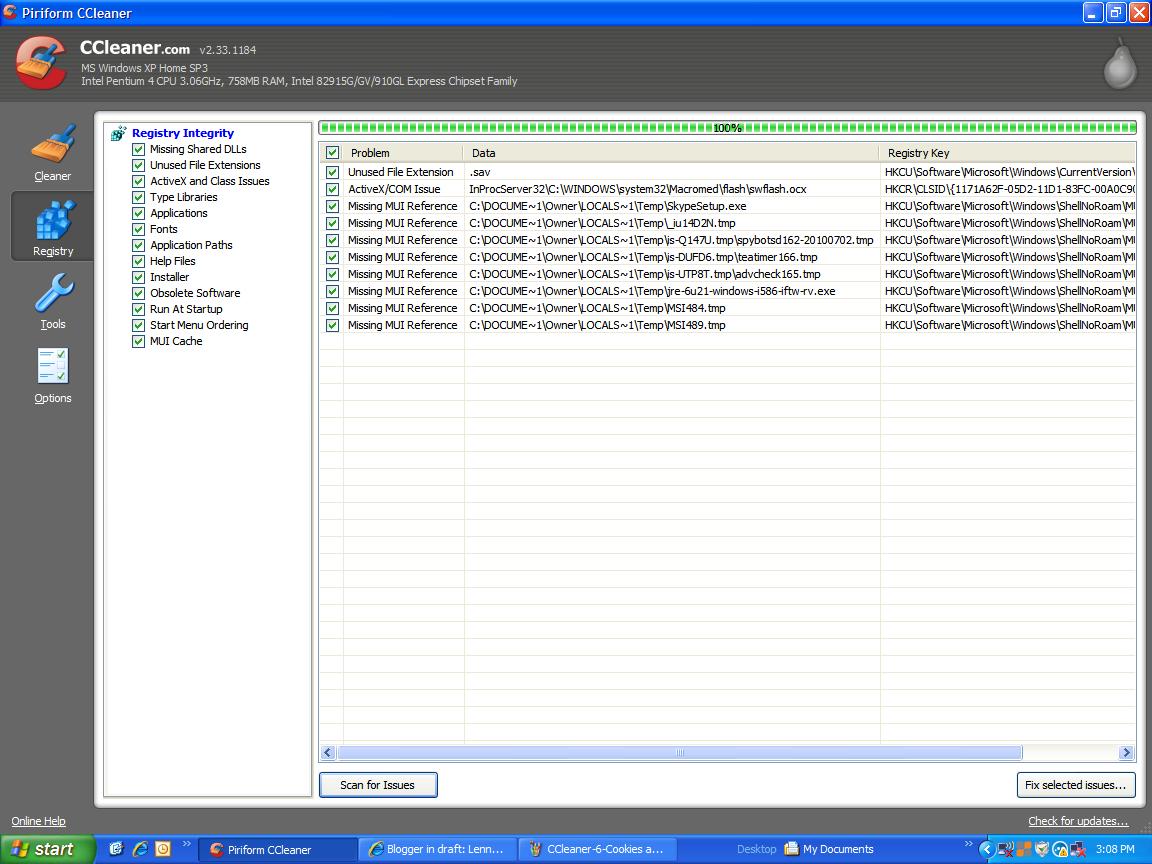
This next image shows how I've Cleaned the 10 Registry Issues that CCleaner found when it scanned my Registry. Please note that I also use WinASO Registry Optimizer or the online scan from Windows Live OneCare to scan and fix registry entries.

Well, that's how I use CCleaner on a Daily basis for Cleaning out my browser's temporary internet files, cookies and flash cookies. If you have any questions, please feel free to post a comment below or you can go to the CCleaner Help section or their own forums.
Update - September 07, 2010 - VIEWING SYSTEM RESTORE POINTS
Click the Tools Button on the left side, then the System Restore button and you can view all System Restore points saved on your computer so you have a better idea if you have as many as you may think you have. If you don't have enough (and enough is a user preference), then you should increase the amount of hard drive space that is allocated to System Restore. See my blog about System Restore for details. One of my computers only has about a weeks worth of restore points while my other computer has almost a months worth of restore points. Most folks actually have too many SRP's since the default setting for System Restore is to use 12% of a hard drive for SRP's and with modern hard drives being so much larger than in the past, this can result in dozens and dozens of SRP's instead of the 10-30 that should be needed by most people. I use CCleaner once a week or so to look at the number of SRP's I have and then save the oldest one and then Remove every other one except I save the most recent 3-5 SRP's since those would be the ones most likely to ever be needed in the event there is an issue. Usually an issue that needs to be fixed with a System Restore will only have to go back a day or two since most folks would see things are not right in that period of time. In the rare case where someone would have to go back longer than that, they would still have every other day's SRP point saved going back a month or more. On my computers with HD's around 100GB or larger, I set the System Restore memory at the lowest point, 3%. On my oldest computer that I still use, which only has a 16GB hard drive, I do allow that one to stay at the default level of 12% but I do use CCleaner to remove the every other day SRP's to allow for the up to a month's worth of SRP's on that computer.
I hope this helps!
Lenny Vasbinder
-----------
Please feel free to leave a comment below. Click the Comments link if the Comments section is not already open.
How I ALWAYS do a clean install of Yahoo Messenger (YM) on Windows XP, With Updates For Vista And Windows 7
NOTICE - This was originally published on my other general purpose blog back in 2007 and has been updated many times since then. I have moved a copy of the original to this blog and will keep this blog updated from now on and will add a link to this page on the older version of this blog.
http://tinyurl.com/How-I-ALWAYS-Install-YM
Edit/Update -
April 21, 2011 - Lots of people are having problems with their IM's not showing up... this is related to Java not being updated and working right in your IE browser. This is covered right below the Quick Steps.
Sept. 20, 2010 - Info on running Check Disk on your primary hard drive.
September 11, 2010 (God Bless America - Always Remember 9/11 And Never Forget The Terrorist Attacks)
Sept. 11, 2010 - Two links added at the bottom for other reference sites.
July 17, 2010 - Added "Quick-Steps" to the top of this post;
June 24, 2010 - added new location for Yupdater.exe file;
May 08, 2010 - added an email sent to someone with some info;
April 14, 2010 - fixed a link;
January 31, 2010 - to add more info about using Revo Uninstaller and to add info for Windows Vista and newer YM versions;
Many other updates prior.
Quick-Steps To Summarize The Below Information:
(NOTE: Create A Restore Point before each step if you are unsure of your computer tech abilities)
1. Uninstall Yahoo Messenger (YM) using the Revo Uninstaller. Save a copy of your Archives folder if you keep archives of your chat sessions. Turn off and re-start computer.
2. Run CCleaner Registry Cleaner (or WinASO or other legitimate registry cleaner)
3. Run Secunia Online Scanner to see if it finds any OLD remnants of YM.
4. Make sure you have updated versions of Adobe Flash Player and Sun's Java browser plugins for Internet Explorer, preferably version 8 (mainly for use in the Chat Rooms, not as much for YM)
5. Download a FULL sized version of YM from FileHippo.com or your preferred download site, to your desktop or preferred download folder.
6. Turn off and re-start your computer and make sure IE is working properly, including the Java and Flash sites.
7. Go to your downloaded FULL sized version of YM and run the .EXE file to start the installation. You may not want to install any toolbars or other add-ons that Yahoo may have included in the download. DO NOT RUN YM YET.
8. Move your copy of your archive folder back to where it should be.
9. Start up YM and go through all of the Preferences Menu setting things up how you like them since the above steps would have removed all of your previous settings.
10. Start IM'ing your friends, testing all of the features and go to Chat Rooms to make sure things are working well. If they aren't, leave me a comment below or go to the Yahoo Messenger Yahoo Group (link in next paragraph), join the group and post your questions there.
Here's something that should fix the invisible IM's issue that many are seeing.
You probably changed your javascripting settings in IE so try this fix...
When you send/receive an instant message and no message appears, you most likely have Scripting disabled in your Internet Explorer.
To enable Scripting:
Click the Tools menu on your Internet Explorer toolbar and select Internet Options.
Click the Security tab.
Click the Internet (globe) icon and click the Custom Level button.
Scroll down to Scripting. Enable the following:
Active scripting
Allow paste operations via script
Scripting of Java applets are all enabled.
Click the OK button at the bottom of the window.
Please Note: Restart Messenger and you should start seeing text in your IM windows once again.
Following is a message and amendment that I posted in one of my Yahoo Groups, http://groups.yahoo.com/group/Yahoo_Messenger, back in May 2007 but I've been meaning to post it to my blog as well so here it is about five months later! And I have updated this article many times since.
Sent: Thursday, May 31, 2007 10:21 PM
To: 'Yahoo_Messenger@yahoogroups.com'
Subject: How I ALWAYS install Yahoo Messenger on Windows XP
Hi YM Group,
I thought I had done this before but after someone contacted me off list, I searched through the archives and couldn't find my post so I guess I've just added bits and pieces of this information in various replies over the years but here is how I prepare my computer before downloading a new version of Yahoo Messenger (YM).
Uninstall old version of YM using Add/Remove programs for the YM uninstaller. Reboot computer. OR BETTER YET, use the Revo Uninstaller and use it's default settings to find and remove a lot of the junk that the normal YM uninstaller leaves behind. http://www.revouninstaller.com/ Go through each step and delete the files and registry keys that it highlights and recommends except you might want to save a copy of your archived chats and other archived info as mentioned later in this article.
Reboot your computer after each step in this article.
Run a GOOD registry cleaner. I use and recommend WinASO Registry Optimizer http://www.winaso.com/download.htm which is FREE to download and use as long as you like, but the trial version has a limitation that is more of an annoyance than anything else, in that it tries to get you to pay for the unlimited version but if you don't mind dealing with the annoyance, it works as good as the paid version. I've been using the FREE trial version for several years since version 1.0. I've never had a single problem using it to clean and optimize my registry. The downside/annoyance of the free trial version is that it will only clean 10 items each time it is run. The first time you run it, you may find several hundred items that need to be fixed so you will have to run it dozens of times. OR BETTER YET, you can run CCleaner's Registry Cleaner option, http://www.ccleaner.com/, to get rid of most of the junk and then follow it up with WinASO (FREE version) to do a full cleaning since it does a better job than CCleaner. After that, if you run WinASO 1-2 times a week, it will be much quicker, easier and keep your computer from being bogged up as much with junk. After cleaning/fixing your registry, reboot your computer.
Another FREE registry cleaner is offered as an online scan from Microsoft by going to the Windows Live OneCare Safety Center http://onecare.live.com/site/en-us/center/cleanup.htm and run the Clean Up scan. You will have to allow a small download for the scan to run and you may also see the new Microsoft Security Essentials advertised on that page. For an MS product, it's getting rave reviews from many in the computer tech and security industry. It's not needed to use the free scans and it's not as extensive as other FREE security software that is out there but it is an easy to use security program for folks that do not want to learn the more sophisticated security programs.
Now download and SAVE (to "desktop" or your favorite file folder for saving things where you can find the download after you reboot) the full version of Yahoo Messenger from http://www.filehippo.com/download_yahoo_messenger/ or your favorite safe program download site. DO NOT chose "RUN" during the download and DO NOT RUN or execute the full version after it is downloaded. The full version of YM is around 10-15MB (depending on which version) in comparison to the Yahoo Messenger "official" installer that is only around 484kb when downloaded from http://messenger.yahoo.com/ I find that the Yahoo installer will have more problems especially if someone has a strong firewall or slow internet connection.
It's this "installer" version that causes so many problems, IMO. Because when you run it, it then starts downloading other bits and pieces of the program and if there are any glitches in your internet service or with Yahoo servers (and we all know there are those! ;-\), you can end up with a bad download with various bugs. When you download the full version from FileHippo or another download site, after you download it and get ready to run it, there should be Publisher listed, which should be Yahoo! Inc in a blue link which is to a digital verification site to verify that you have a legitimate version of the program. This works for most programs you may download although there are many that will not have this digital verification capability and when you go to execute one of these "unsigned" programs, you will get a little warning message on the box. If I know I downloaded the program from a reliable site, I don't worry about this but if you are not sure, you should never run a program without a digital signature attached. Many other programs have a way to run a check-sum on the download to make sure you got the download in full without errors but I've never seen this available with YM. Usually, if you have the digital signature, it means things went smoothly and you have a full version without errors.
If you use CCleaner, you should run it now to clean out your temporary files and TIF files. I am not going into all the aspects of CCleaner in this post but for most folks, it can be a problem to remove things they did not want cleaned if they do not go through and become very familiar with the program. It will clean auto-complete info, search history, cookies, etc., when used in the default mode. The CCleaner Registry Cleaner is OK to use in default mode but the rest of CCleaner should be understood before running or the user could lose information that they actually wanted to keep. This is why I like WinASO as a registry cleaner. Even a rookie can run the registry optimizer without causing problems to their computer... at least it's never caused me problems in hundreds of times of running it.
If you don't use CCleaner and did not use the Windows Live OneCare Safety Center Cleanup Scan, you should use your web-browser Tools to empty the TIF files. Then run a Search on your computer for all temporary files and remove them manually. If you don't know how to do this, then you should download CCleaner and become familiar with CCleaner and use it for this purpose or use the Windows Cleanup online scan. Feel free to ask me here and I'll tell you how I have my CCleaner set up to run it daily to keep the junk files off my computer.
Reboot the computer and leave all other programs turned off except for anti-virus and firewall.
Then, if you downloaded YM full version to your desktop, simply click on it to execute the program. If you have a firewall, you should get a pop-up asking for access, from the YM program installer, to the internet and other areas of your computer. Permit this and if you use an advanced firewall (which you should be using over the Windows Firewall which isn't very good), put a check mark in the box to allow it on a permanent basis. You can always go back to the firewall user interface and delete this permission later if you want to.
Choose the "CUSTOM" install instead of Yahoo's recommended install. This makes sure that all you install is YM and not all the other junk they try to get you to install like tool bars, etc. I choose CUSTOM install on ALL programs that I install on my computer to make sure I don't install junk I didn't want. The CUSTOM install still gives you the option to install other things but it doesn't force them on you without your knowledge. This is common practice on all FREE programs as a way to help them pay for their free program. Google, MSN, Yahoo and other companies pay to have their toolbars and desktop search programs included in the downloads. Reputable download sites and programs give you the option of opting out of these add-ons.
Now, once the YM program is installed on your computer. Reboot again.
Rebooting is important to computers as it's a way of letting the computer put everything back into place. If you are in the habit of leaving your computer on for days at a time, if you find it getting sluggish, a reboot will normally speed it back up again.
Now start up YM and go through your preferences, setting things to work how you like them. Become familiar with the Messenger Menus and the Preferences Menus and ask questions here about anything you may not understand.
The last thing that I do with any new install of YM is go into the C:\Program Files\Yahoo!\Messenger folder (or for version 10.x, the Yupdater.exe is now located in C:\Documents and Settings\All Users\Application Data\Yahoo!\YUpdater and find the file Yupdater.exe and change the name to Yupdater-NOT USED.exe. You can also use your firewall to simply block Yupdater.exe from connecting to the internet but many folks do not utilize their firewalls in an advanced mode so Yupdater.exe would have access unless you went into your firewall and blocked it. This way with changing the file name, your installed version of YM will not automatically update to any newer release of YM without your express consent as YM will not find the Yupdater.exe file when it tries to contact Yahoo like it will do on a regular basis if you don't block it or change the file name. YM 10.0x does have a section in the preferences that allows you to check off saying that you do not want YM to update automatically and I have that checked off but I still change the Yupdater.exe file as well.
If you decide you are not happy with your current version, you can then repeat the steps above and download a more recent version and install that version. I've found that allowing Yupdater.exe to connect to Yahoo, it constantly stays in contact with Yahoo whenever YM is in use. I've verified this with my firewall. I'm not sure why an updater process would need to stay in constant contact with the manufacturer. Even my Antivirus, Antispyware, etc., only contacts their updates once a day for new malware definitions. None of my other programs on my computer stays in constant contact for updates. They either run on a monthly basis or some other time interval. Certainly, Yahoo isn't releasing daily updates so YM should not need 100% access to Yahoo servers, IMO.
Hopefully, if all went well, your newly installed or reinstalled version of YM will be much more stable and cause less problems for you and you will not need to update to new versions as often.
I still run YM versions 8.1x, 9.1x and 10.0x and they are very stable on my computers compared to some of the stories I read about daily and with the people I help on a daily basis here and on other forums and my friends and neighbors that used the Yahoo Installer.
I hope this helps and feel free to ask any questions you may have. I'll probably put this on my blog with some screen shots of WinASO and CCleaner and how I have my CCleaner set up so it does not clean things some people actually want to keep and I'll post a link when I do.
Ooops. I almost forgot one step. It may not be critical but it could cause you to lose your archived chats if you have YM set to save them. Before uninstalling and cleaning up your computer with Revo Uninstaller, WinASO, CCleaner and Windows OneCare Cleanup utility, for XP, go to C:\Program Files\Yahoo!\Messenger\Profiles\(your yahoo name)\Archive and copy both of the folders in the Archive folder. For Windows Vista and Windows 7, the file path is C:\Users\\AppData\Local\VirtualStore\Program Files\Yahoo!\Messenger\Profiles\. There should be a Conferences and a Messages folder. Just copy and save them to your desktop or your other favorite place to save things.
Usually, during an uninstall and reinstall of YM, using the standard uninstaller, these folders are left in place but in the past, if I had a buggy YM install, I would sometimes go and delete the entire Messenger folder (C:\Program Files\Yahoo!\Messenger) (and the AppData folder for Yahoo!\Messenger in Vista/W7) to make sure I get rid of all traces of the buggy version. By saving copies of the Archive folders, I can move them back into their proper place after a new clean install. If you go to this extreme of removing everything associated with YM, make sure you run WinASO, CCleaner and Windows OneCare Cleanup utility before doing the clean install of the new full version download.
Hope this helps!
Lenny Vasbinder
Here are the emails that I mentioned in the May 08, 2010 Update:
-----Original Message-----
From: J
Sent: Friday, April 09, 2010 10:46 PM
To: lnvtm1@gmail.com
Subject: I'm back!!
High Lenny,
Thanks for the 2 sites you gave me to uninstall and check for updates, really good ones.
I did the complete uninstall and downloaded the latest IM 10.x and the scan said it was perfect, it also picked up 3 earlier versions of yahoo that are lying in my registry that uninstall has not removed. How do I identify that and erase it?
I have copied the new IM 10.x to a flash drive and am going to uninstall the sytem again and reinstall after I have erased the old Im's, as I still have the same display problem at 480 x 800 ech time I log on. Added to that, my cam works on IM, but when I choose a room it won't connect, just says getting room list and stays dead, so it's got worse damnit.
Thats why I want to start fresh again, also I now get a add on notification on any site saying website wants Adobe flash player wants to be added on. I have okayed it and run it but nothing changes the system and it keeps on appearing.
I have also checked my add ons in tools and they are all enabled.
So once again, would you kindly give me your thoughts?
regards,
MORSELS / Jerry
And my REPLY:
-----Original Message-----
From: LNVTM1 - Lenny Vasbinder
Sent: Friday, April 09, 2010 11:32 PM
To: 'J'; 'Yahoo_Messenger@yahoogroups.com'
Subject: RE: I'm back!!
Hi Jerry,
See one of my previous replies. After you did the FULL install of YM, did you check the YahooMessenger.exe file Properties>Compatibility Tab, to make sure that you don't have a check mark in the display settings box? It shouldn't be but possibly one of your old versions has a registry key that is affecting the settings of your new download.
If that isn't the problem, I'm wondering if one of the old version or some registry remnant from one of the old version is messing things up in other ways.
Did you save the FULL download from http://www.filehippo.com/ (or your preferred download site)? If you saved it on your desktop or in a folder in your My Documents folder or however you have your computer organized, then there is no need to copy that to a flash drive. When you uninstall YM, it will not delete the file that you downloaded so after you clean things up, you can just click on that .exe file again and start the install process all over again.
When you uninstall YM 10.x, I would use the Revo Uninstaller and then follow the instructions with Revo to delete all of the leftover registry keys and program remnants. See my blog article for more details.
Then run the Secunia Online Scanner again and see if it finds any remnants of the old versions of YM. If it does, it will actually list the file path to where that remnant was found and you can just follow that file path and just highlight and delete the files. OR... after running Revo, you can just go to your C:\Program Files\Yahoo!\Messenger and delete the entire Messenger folder but you may want to go through that folder and only delete the things you do not want to keep. For example, I save my archived chats so I move those Archive folders to My Documents folder and then move them back to their proper place after I install a new version. For Windows XP, the Archive folder is in the above file path.
For Windows Vista and Windows 7, the file path is:
C:\Users\\AppData\Local\VirtualStore\Program Files\Yahoo!\Messenger\Profiles\
If you feel comfortable fooling with your Registry, you could also search for Yahoo Messenger entries in your registry and clean them out manually, although I would use CCleaner's Registry Cleaner and then WinASO Registry Optimizer to look for and clean up any errant registry entries... and if you used Revo Uninstaller, it probably already got them all!
After things are all cleaned up, then do the installation again, check the Properties>Compatibility Tab to make sure nothing is checked there and if you are still having monitor issues, I would have to think it's one of the other problems with a driver that needs to be updated or rolled back. See my earlier reply for some of the other issues that caused monitor issues related to YM.
As far as Adobe Flash, once you've uninstalled it and removed the old remnants, using the same methods above, go to http://kb2.adobe.com/cps/155/tn_15507.html and it will check your version and http://www.adobe.com/software/flash/about/ will show an animated flash video that says "Adobe Flash Player Successfully Installed" and then change to another Adobe related Ad. If you aren't updated or installed properly, go to http://get.adobe.com/flashplayer/ (you may want to uncheck the Google Toolbar thing... I NEVER install all of the add-on software that is often pushed from many free programs) Click on Agree And Install and follow the prompts to install Adobe. Prior to doing this, Secunia's Online scanner should have told you about out-dated Flash remnants and you can follow the file paths to delete the outdated flash files that were left over from previous installations.
As far as going to the rooms, I think you have to have Java installed. Did Secunia identify if you had Java installed and updated? If you didn't, get it here. http://www.java.com/getjava/ On that page, right below the Free Java Download button, there's a link to "Do I Have Java?" so you can check it first and that will also tell you if you have the latest version.
I probably need to add some of this info to my article on doing a FULL and CLEAN install of YM since Flash and Java are often needed with YM.
Other sites:
http://www.xiirus.net/articles/article-yahoo-messenger-archive-location-in-vista-yrhm6.aspx - mostly the comments section has some good info.
http://www.ehow.com/how_5713165_move-message-archive-another-computer.html
Lenny Vasbinder
Run Check Disk (ChkDsk) On Your Computer On A Regular Basis
Quick Steps (for XP and Vista and probably for W7)
Open My Computer
R-Click on Local Disk C (or your primary hard drive) and choose Properties
Click on the Tools Tab and then the Check Now Button which opens a new window
Check the boxes for "Automatically fix..." and "Scan for and attempt recovery..."
Click Start which will open a new window that says "The disk check could not be performed... Do you want to schedule this disk check to occur the next time you restart the computer?"
Click YES, then OK out of the Local Disk Properties window and close the My Computer window.
Then the next time you will not be needing your computer for an hour or two or more, after closing all your running programs, turn off the computer. Then restart it and follow the instrutions, then go do something else while Check Disk (or Disk Check) does it's thing... or you can watch the first time to see it go through the five steps.
Here's more details..
http://support.microsoft.com/kb/315265
http://www.updatexp.com/windows-xp-chkdsk.html
http://www.howtogeek.com/howto/windows-vista/guide-to-using-check-disk-in-windows-vista/
CLICK THE LINK "YAHOO MESSENGER" UNDER THE LABELS SECTION TO THE LEFT FOR MORE OF MY BLOGS ABOUT YAHOO MESSENGER
http://tinyurl.com/How-I-ALWAYS-Install-YM
Edit/Update -
April 21, 2011 - Lots of people are having problems with their IM's not showing up... this is related to Java not being updated and working right in your IE browser. This is covered right below the Quick Steps.
Sept. 20, 2010 - Info on running Check Disk on your primary hard drive.
September 11, 2010 (God Bless America - Always Remember 9/11 And Never Forget The Terrorist Attacks)
Sept. 11, 2010 - Two links added at the bottom for other reference sites.
July 17, 2010 - Added "Quick-Steps" to the top of this post;
June 24, 2010 - added new location for Yupdater.exe file;
May 08, 2010 - added an email sent to someone with some info;
April 14, 2010 - fixed a link;
January 31, 2010 - to add more info about using Revo Uninstaller and to add info for Windows Vista and newer YM versions;
Many other updates prior.
Quick-Steps To Summarize The Below Information:
(NOTE: Create A Restore Point before each step if you are unsure of your computer tech abilities)
1. Uninstall Yahoo Messenger (YM) using the Revo Uninstaller. Save a copy of your Archives folder if you keep archives of your chat sessions. Turn off and re-start computer.
2. Run CCleaner Registry Cleaner (or WinASO or other legitimate registry cleaner)
3. Run Secunia Online Scanner to see if it finds any OLD remnants of YM.
4. Make sure you have updated versions of Adobe Flash Player and Sun's Java browser plugins for Internet Explorer, preferably version 8 (mainly for use in the Chat Rooms, not as much for YM)
5. Download a FULL sized version of YM from FileHippo.com or your preferred download site, to your desktop or preferred download folder.
6. Turn off and re-start your computer and make sure IE is working properly, including the Java and Flash sites.
7. Go to your downloaded FULL sized version of YM and run the .EXE file to start the installation. You may not want to install any toolbars or other add-ons that Yahoo may have included in the download. DO NOT RUN YM YET.
8. Move your copy of your archive folder back to where it should be.
9. Start up YM and go through all of the Preferences Menu setting things up how you like them since the above steps would have removed all of your previous settings.
10. Start IM'ing your friends, testing all of the features and go to Chat Rooms to make sure things are working well. If they aren't, leave me a comment below or go to the Yahoo Messenger Yahoo Group (link in next paragraph), join the group and post your questions there.
Here's something that should fix the invisible IM's issue that many are seeing.
You probably changed your javascripting settings in IE so try this fix...
When you send/receive an instant message and no message appears, you most likely have Scripting disabled in your Internet Explorer.
To enable Scripting:
Click the Tools menu on your Internet Explorer toolbar and select Internet Options.
Click the Security tab.
Click the Internet (globe) icon and click the Custom Level button.
Scroll down to Scripting. Enable the following:
Active scripting
Allow paste operations via script
Scripting of Java applets are all enabled.
Click the OK button at the bottom of the window.
Please Note: Restart Messenger and you should start seeing text in your IM windows once again.
Following is a message and amendment that I posted in one of my Yahoo Groups, http://groups.yahoo.com/group/Yahoo_Messenger, back in May 2007 but I've been meaning to post it to my blog as well so here it is about five months later! And I have updated this article many times since.
Sent: Thursday, May 31, 2007 10:21 PM
To: 'Yahoo_Messenger@yahoogroups.com'
Subject: How I ALWAYS install Yahoo Messenger on Windows XP
Hi YM Group,
I thought I had done this before but after someone contacted me off list, I searched through the archives and couldn't find my post so I guess I've just added bits and pieces of this information in various replies over the years but here is how I prepare my computer before downloading a new version of Yahoo Messenger (YM).
Uninstall old version of YM using Add/Remove programs for the YM uninstaller. Reboot computer. OR BETTER YET, use the Revo Uninstaller and use it's default settings to find and remove a lot of the junk that the normal YM uninstaller leaves behind. http://www.revouninstaller.com/ Go through each step and delete the files and registry keys that it highlights and recommends except you might want to save a copy of your archived chats and other archived info as mentioned later in this article.
Reboot your computer after each step in this article.
Run a GOOD registry cleaner. I use and recommend WinASO Registry Optimizer http://www.winaso.com/download.htm which is FREE to download and use as long as you like, but the trial version has a limitation that is more of an annoyance than anything else, in that it tries to get you to pay for the unlimited version but if you don't mind dealing with the annoyance, it works as good as the paid version. I've been using the FREE trial version for several years since version 1.0. I've never had a single problem using it to clean and optimize my registry. The downside/annoyance of the free trial version is that it will only clean 10 items each time it is run. The first time you run it, you may find several hundred items that need to be fixed so you will have to run it dozens of times. OR BETTER YET, you can run CCleaner's Registry Cleaner option, http://www.ccleaner.com/, to get rid of most of the junk and then follow it up with WinASO (FREE version) to do a full cleaning since it does a better job than CCleaner. After that, if you run WinASO 1-2 times a week, it will be much quicker, easier and keep your computer from being bogged up as much with junk. After cleaning/fixing your registry, reboot your computer.
Another FREE registry cleaner is offered as an online scan from Microsoft by going to the Windows Live OneCare Safety Center http://onecare.live.com/site/en-us/center/cleanup.htm and run the Clean Up scan. You will have to allow a small download for the scan to run and you may also see the new Microsoft Security Essentials advertised on that page. For an MS product, it's getting rave reviews from many in the computer tech and security industry. It's not needed to use the free scans and it's not as extensive as other FREE security software that is out there but it is an easy to use security program for folks that do not want to learn the more sophisticated security programs.
Now download and SAVE (to "desktop" or your favorite file folder for saving things where you can find the download after you reboot) the full version of Yahoo Messenger from http://www.filehippo.com/download_yahoo_messenger/ or your favorite safe program download site. DO NOT chose "RUN" during the download and DO NOT RUN or execute the full version after it is downloaded. The full version of YM is around 10-15MB (depending on which version) in comparison to the Yahoo Messenger "official" installer that is only around 484kb when downloaded from http://messenger.yahoo.com/ I find that the Yahoo installer will have more problems especially if someone has a strong firewall or slow internet connection.
It's this "installer" version that causes so many problems, IMO. Because when you run it, it then starts downloading other bits and pieces of the program and if there are any glitches in your internet service or with Yahoo servers (and we all know there are those! ;-\), you can end up with a bad download with various bugs. When you download the full version from FileHippo or another download site, after you download it and get ready to run it, there should be Publisher listed, which should be Yahoo! Inc in a blue link which is to a digital verification site to verify that you have a legitimate version of the program. This works for most programs you may download although there are many that will not have this digital verification capability and when you go to execute one of these "unsigned" programs, you will get a little warning message on the box. If I know I downloaded the program from a reliable site, I don't worry about this but if you are not sure, you should never run a program without a digital signature attached. Many other programs have a way to run a check-sum on the download to make sure you got the download in full without errors but I've never seen this available with YM. Usually, if you have the digital signature, it means things went smoothly and you have a full version without errors.
If you use CCleaner, you should run it now to clean out your temporary files and TIF files. I am not going into all the aspects of CCleaner in this post but for most folks, it can be a problem to remove things they did not want cleaned if they do not go through and become very familiar with the program. It will clean auto-complete info, search history, cookies, etc., when used in the default mode. The CCleaner Registry Cleaner is OK to use in default mode but the rest of CCleaner should be understood before running or the user could lose information that they actually wanted to keep. This is why I like WinASO as a registry cleaner. Even a rookie can run the registry optimizer without causing problems to their computer... at least it's never caused me problems in hundreds of times of running it.
If you don't use CCleaner and did not use the Windows Live OneCare Safety Center Cleanup Scan, you should use your web-browser Tools to empty the TIF files. Then run a Search on your computer for all temporary files and remove them manually. If you don't know how to do this, then you should download CCleaner and become familiar with CCleaner and use it for this purpose or use the Windows Cleanup online scan. Feel free to ask me here and I'll tell you how I have my CCleaner set up to run it daily to keep the junk files off my computer.
Reboot the computer and leave all other programs turned off except for anti-virus and firewall.
Then, if you downloaded YM full version to your desktop, simply click on it to execute the program. If you have a firewall, you should get a pop-up asking for access, from the YM program installer, to the internet and other areas of your computer. Permit this and if you use an advanced firewall (which you should be using over the Windows Firewall which isn't very good), put a check mark in the box to allow it on a permanent basis. You can always go back to the firewall user interface and delete this permission later if you want to.
Choose the "CUSTOM" install instead of Yahoo's recommended install. This makes sure that all you install is YM and not all the other junk they try to get you to install like tool bars, etc. I choose CUSTOM install on ALL programs that I install on my computer to make sure I don't install junk I didn't want. The CUSTOM install still gives you the option to install other things but it doesn't force them on you without your knowledge. This is common practice on all FREE programs as a way to help them pay for their free program. Google, MSN, Yahoo and other companies pay to have their toolbars and desktop search programs included in the downloads. Reputable download sites and programs give you the option of opting out of these add-ons.
Now, once the YM program is installed on your computer. Reboot again.
Rebooting is important to computers as it's a way of letting the computer put everything back into place. If you are in the habit of leaving your computer on for days at a time, if you find it getting sluggish, a reboot will normally speed it back up again.
Now start up YM and go through your preferences, setting things to work how you like them. Become familiar with the Messenger Menus and the Preferences Menus and ask questions here about anything you may not understand.
The last thing that I do with any new install of YM is go into the C:\Program Files\Yahoo!\Messenger folder (or for version 10.x, the Yupdater.exe is now located in C:\Documents and Settings\All Users\Application Data\Yahoo!\YUpdater and find the file Yupdater.exe and change the name to Yupdater-NOT USED.exe. You can also use your firewall to simply block Yupdater.exe from connecting to the internet but many folks do not utilize their firewalls in an advanced mode so Yupdater.exe would have access unless you went into your firewall and blocked it. This way with changing the file name, your installed version of YM will not automatically update to any newer release of YM without your express consent as YM will not find the Yupdater.exe file when it tries to contact Yahoo like it will do on a regular basis if you don't block it or change the file name. YM 10.0x does have a section in the preferences that allows you to check off saying that you do not want YM to update automatically and I have that checked off but I still change the Yupdater.exe file as well.
If you decide you are not happy with your current version, you can then repeat the steps above and download a more recent version and install that version. I've found that allowing Yupdater.exe to connect to Yahoo, it constantly stays in contact with Yahoo whenever YM is in use. I've verified this with my firewall. I'm not sure why an updater process would need to stay in constant contact with the manufacturer. Even my Antivirus, Antispyware, etc., only contacts their updates once a day for new malware definitions. None of my other programs on my computer stays in constant contact for updates. They either run on a monthly basis or some other time interval. Certainly, Yahoo isn't releasing daily updates so YM should not need 100% access to Yahoo servers, IMO.
Hopefully, if all went well, your newly installed or reinstalled version of YM will be much more stable and cause less problems for you and you will not need to update to new versions as often.
I still run YM versions 8.1x, 9.1x and 10.0x and they are very stable on my computers compared to some of the stories I read about daily and with the people I help on a daily basis here and on other forums and my friends and neighbors that used the Yahoo Installer.
I hope this helps and feel free to ask any questions you may have. I'll probably put this on my blog with some screen shots of WinASO and CCleaner and how I have my CCleaner set up so it does not clean things some people actually want to keep and I'll post a link when I do.
Ooops. I almost forgot one step. It may not be critical but it could cause you to lose your archived chats if you have YM set to save them. Before uninstalling and cleaning up your computer with Revo Uninstaller, WinASO, CCleaner and Windows OneCare Cleanup utility, for XP, go to C:\Program Files\Yahoo!\Messenger\Profiles\(your yahoo name)\Archive and copy both of the folders in the Archive folder. For Windows Vista and Windows 7, the file path is C:\Users\\AppData\Local\VirtualStore\Program Files\Yahoo!\Messenger\Profiles\. There should be a Conferences and a Messages folder. Just copy and save them to your desktop or your other favorite place to save things.
Usually, during an uninstall and reinstall of YM, using the standard uninstaller, these folders are left in place but in the past, if I had a buggy YM install, I would sometimes go and delete the entire Messenger folder (C:\Program Files\Yahoo!\Messenger) (and the AppData folder for Yahoo!\Messenger in Vista/W7) to make sure I get rid of all traces of the buggy version. By saving copies of the Archive folders, I can move them back into their proper place after a new clean install. If you go to this extreme of removing everything associated with YM, make sure you run WinASO, CCleaner and Windows OneCare Cleanup utility before doing the clean install of the new full version download.
Hope this helps!
Lenny Vasbinder
Here are the emails that I mentioned in the May 08, 2010 Update:
-----Original Message-----
From: J
Sent: Friday, April 09, 2010 10:46 PM
To: lnvtm1@gmail.com
Subject: I'm back!!
High Lenny,
Thanks for the 2 sites you gave me to uninstall and check for updates, really good ones.
I did the complete uninstall and downloaded the latest IM 10.x and the scan said it was perfect, it also picked up 3 earlier versions of yahoo that are lying in my registry that uninstall has not removed. How do I identify that and erase it?
I have copied the new IM 10.x to a flash drive and am going to uninstall the sytem again and reinstall after I have erased the old Im's, as I still have the same display problem at 480 x 800 ech time I log on. Added to that, my cam works on IM, but when I choose a room it won't connect, just says getting room list and stays dead, so it's got worse damnit.
Thats why I want to start fresh again, also I now get a add on notification on any site saying website wants Adobe flash player wants to be added on. I have okayed it and run it but nothing changes the system and it keeps on appearing.
I have also checked my add ons in tools and they are all enabled.
So once again, would you kindly give me your thoughts?
regards,
MORSELS / Jerry
And my REPLY:
-----Original Message-----
From: LNVTM1 - Lenny Vasbinder
Sent: Friday, April 09, 2010 11:32 PM
To: 'J'; 'Yahoo_Messenger@yahoogroups.com'
Subject: RE: I'm back!!
Hi Jerry,
See one of my previous replies. After you did the FULL install of YM, did you check the YahooMessenger.exe file Properties>Compatibility Tab, to make sure that you don't have a check mark in the display settings box? It shouldn't be but possibly one of your old versions has a registry key that is affecting the settings of your new download.
If that isn't the problem, I'm wondering if one of the old version or some registry remnant from one of the old version is messing things up in other ways.
Did you save the FULL download from http://www.filehippo.com/ (or your preferred download site)? If you saved it on your desktop or in a folder in your My Documents folder or however you have your computer organized, then there is no need to copy that to a flash drive. When you uninstall YM, it will not delete the file that you downloaded so after you clean things up, you can just click on that .exe file again and start the install process all over again.
When you uninstall YM 10.x, I would use the Revo Uninstaller and then follow the instructions with Revo to delete all of the leftover registry keys and program remnants. See my blog article for more details.
Then run the Secunia Online Scanner again and see if it finds any remnants of the old versions of YM. If it does, it will actually list the file path to where that remnant was found and you can just follow that file path and just highlight and delete the files. OR... after running Revo, you can just go to your C:\Program Files\Yahoo!\Messenger and delete the entire Messenger folder but you may want to go through that folder and only delete the things you do not want to keep. For example, I save my archived chats so I move those Archive folders to My Documents folder and then move them back to their proper place after I install a new version. For Windows XP, the Archive folder is in the above file path.
For Windows Vista and Windows 7, the file path is:
C:\Users\
If you feel comfortable fooling with your Registry, you could also search for Yahoo Messenger entries in your registry and clean them out manually, although I would use CCleaner's Registry Cleaner and then WinASO Registry Optimizer to look for and clean up any errant registry entries... and if you used Revo Uninstaller, it probably already got them all!
After things are all cleaned up, then do the installation again, check the Properties>Compatibility Tab to make sure nothing is checked there and if you are still having monitor issues, I would have to think it's one of the other problems with a driver that needs to be updated or rolled back. See my earlier reply for some of the other issues that caused monitor issues related to YM.
As far as Adobe Flash, once you've uninstalled it and removed the old remnants, using the same methods above, go to http://kb2.adobe.com/cps/155/tn_15507.html and it will check your version and http://www.adobe.com/software/flash/about/ will show an animated flash video that says "Adobe Flash Player Successfully Installed" and then change to another Adobe related Ad. If you aren't updated or installed properly, go to http://get.adobe.com/flashplayer/ (you may want to uncheck the Google Toolbar thing... I NEVER install all of the add-on software that is often pushed from many free programs) Click on Agree And Install and follow the prompts to install Adobe. Prior to doing this, Secunia's Online scanner should have told you about out-dated Flash remnants and you can follow the file paths to delete the outdated flash files that were left over from previous installations.
As far as going to the rooms, I think you have to have Java installed. Did Secunia identify if you had Java installed and updated? If you didn't, get it here. http://www.java.com/getjava/ On that page, right below the Free Java Download button, there's a link to "Do I Have Java?" so you can check it first and that will also tell you if you have the latest version.
I probably need to add some of this info to my article on doing a FULL and CLEAN install of YM since Flash and Java are often needed with YM.
Other sites:
http://www.xiirus.net/articles/article-yahoo-messenger-archive-location-in-vista-yrhm6.aspx - mostly the comments section has some good info.
http://www.ehow.com/how_5713165_move-message-archive-another-computer.html
Lenny Vasbinder
Run Check Disk (ChkDsk) On Your Computer On A Regular Basis
Quick Steps (for XP and Vista and probably for W7)
http://support.microsoft.com/kb/315265
http://www.updatexp.com/windows-xp-chkdsk.html
http://www.howtogeek.com/howto/windows-vista/guide-to-using-check-disk-in-windows-vista/
CLICK THE LINK "YAHOO MESSENGER" UNDER THE LABELS SECTION TO THE LEFT FOR MORE OF MY BLOGS ABOUT YAHOO MESSENGER
Subscribe to:
Posts (Atom)


FlagCounter Added August 22, 2010
